
How Vereev for Business works, step by step
Vereev for Business is how shops and sellers get items authenticated by Vereev, then show buyers proof they can check for themselves. This page explains every option in plain words.
- You never connect your shop to Vereev.
- Vereev gives you proof to copy and paste.
- Your buyer checks it on vereev-ai.com.
Choose your situation
Pick the one closest to how you sell. Each one is explained step by step below, and many businesses use more than one. New to Vereev? Read the part every business does first.
The part every business does
Whatever you sell and wherever you sell it, these six steps are the same. Before you start, you need a Vereev account. One account works in the Vereev app and on this website. You can sign in with email and password, Google or Apple.
You
Vereev
Your buyer
Next item? Start again. Each item has its own order and its own record.
The six steps in detail
- 1You:
Get tokens
Tokens pay for authentication orders. The number of tokens for one item depends on its brand.
- In the Vereev app.
- On the Buy tokens page of this website, paid with PayPal.
- By invoice: in Store Kit, press “Request tokens by invoice”.
- 2You:
Send photos of one item
Each item is its own order, with its own result. Two items need two orders.
- Open the Vereev app, or the Authenticate page on this website.
- Choose the brand and the type of item.
- Take the photos the photo guide asks for: 6 to 15 photos of this one item. A phone camera is enough.
- Optional: type your own stock number or SKU. Only you see it.
- Confirm. The order uses the tokens for this item.
- 3Vereev:
Vereev reviews the photos
Each order is checked with AI assistance and reviewed by a Vereev authenticator.
If an angle is missing, Vereev asks for that exact photo. You answer in the app, or on the Authenticate page under “More photos requested”.
Sending more photos does not use tokens.
- 4Vereev:
Vereev gives the result and makes the record
The result is Authentic, Replica or Indefinable. What each one means is explained just below.
An Authentic or Replica result gets an official record: a public page on vereev-ai.com for this one item.
- 5You:
Show the proof where you sell
Vereev gives you proof to copy, download or print: a proof card, a badge, a record link or the app’s certificate.
You post or paste it yourself, like any other picture or text. Nothing is connected to your shop.
Which one to use depends on where you sell. See “Choose your situation” at the top of this page.
- 6Your buyer:
Your buyer checks the record
Your buyer opens the official record on vereev-ai.com: from the badge, a QR code, the short code or the record link.
They need no account and no app. They compare the record’s photos with the item you sell.
What each result means
Authentic
Vereev assessed the item in your photos as authentic.
- It gets a public record on vereev-ai.com.
- Store Kit lists it, with its proof card, badge and record link.
Replica
Vereev assessed the item in your photos as a replica.
- It also gets a public record. You choose whether to share it.
- It has no proof card. Its badge shows “No Vereev authentication”.
Indefinable
The photos could not support a reliable decision.
- The tokens for that order go back to your wallet. You do not need to ask.
- There is no public record and no badge.
- On the website, My orders shows it as “Unable to determine”.
Where to find your results later
In the Vereev app
Follow every order and its result in History.
On this website
On the Authenticate page, “My orders” shows your app and website orders. Authentic and Replica orders have a “View official result” button.
Open the Authenticate pageIn Store Kit
Every Authentic item, with its proof card, badge and record link, and a list you can download.
Open Store KitSituation 1 of 8 · Proof card, without a QR code
I sell on marketplaces
This is for you if…
You list items on online marketplaces. You cannot add code there, and often not links either.
You need
- An Authentic result for the item.
- Store Kit: sign in on vereev-ai.com with your Vereev account.
Steps
- 1
You:Open Store Kit and find the item.
- 2
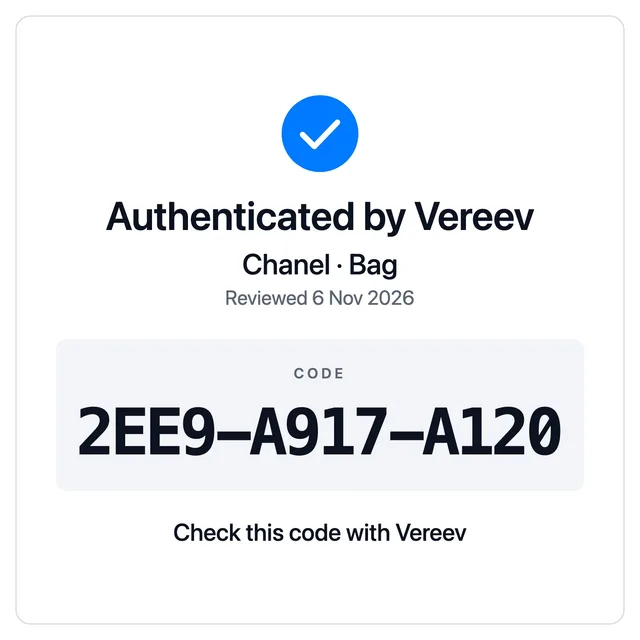
You:Press “Proof card”. Choose “For marketplaces”. This version has no QR code and no web address.
- 3
You:If your marketplace does not allow the name of another site, tick “Hide the Vereev name”.
- 4
You:Press “Download picture”. You get a square picture of the card.
- 5
You:Add the picture as the last photo of your listing.
- 6
Your buyer:Your buyer types the short code from the card on vereev-ai.com/verify. The official record opens.
Or press “Print” instead of “Download picture”. Put the printed card next to the item and take one listing photo with both in view.
 5 / 5
Pre-owned
Designer bag
What your buyer does
- Goes to vereev-ai.com/verify.
- Types the short code from the card, for example 2EE9-A917-A120.
- Presses “Verify certificate”. The official record opens.
- Compares the photos on the record with the photos in your listing.
E-Result code, short code or Vereev link
Official Vereev record
Authentic
Short code 2EE9-A917-A120
Good to know
- Many marketplaces do not allow QR codes or web addresses in listings. Check your marketplace’s rules before you add the card.
- Add the card as its own photo. Do not place it on top of an item photo.
- You can choose the card’s wording and a light or dark colour.
- One card covers one item. Use it only in that item’s listing.
For marketplaces
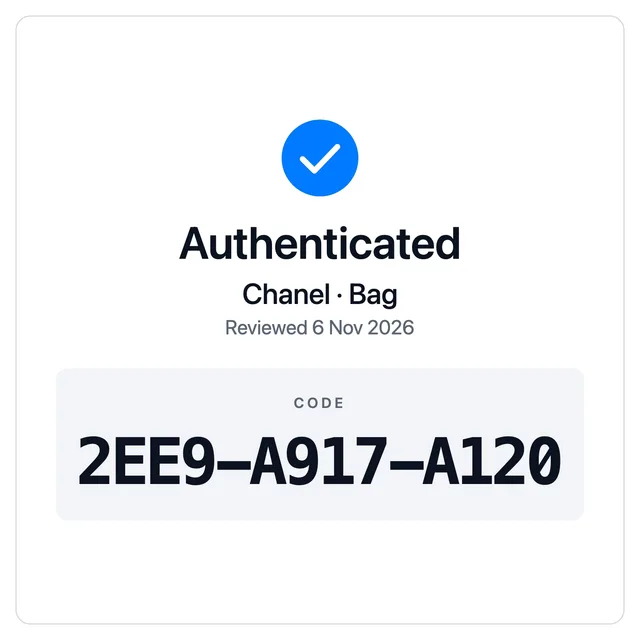
With “Hide the Vereev name” ticked
Situation 3 of 8 · Record link
I sell in chats
This is for you if…
You sell through chat apps, and buyers ask “Is it authentic?” before they pay.
You need
- An Authentic result for the item.
- Store Kit.
Steps
- 1
You:In Store Kit, find the item.
- 2
You:Press “Copy record link”.
- 3
You:Paste the link into the chat and send it.
- 4
Your buyer:Your buyer opens the link. The official record opens on vereev-ai.com.
Or send the item’s proof card for social and chat as a picture. Its QR code and short code open the same record.
What your buyer does
- Opens the link. The record opens in the browser, with no account and no app.
- Checks that the address starts with www.vereev-ai.com/verify/.
- Compares the photos on the record with the photos you sent.
Good to know
- The record describes the item, not the seller. Vereev checks items, not sellers.
- Send a record link only for the item it describes.
Situation 4 of 8 · Badge
I have my own website
This is for you if…
You have your own website, and you can paste a piece of HTML into a product page. Which tool built the site does not matter.
You need
- An Authentic result for the item.
- A place on the product page where you can paste HTML. It is often called an HTML block, a code block, or the HTML view of the description.
- Optional: your own badge design from Badge Studio.
Steps
- 1
You:Optional: in Badge Studio, choose a design and one of four wordings: “Authenticated by Vereev”, “Vereev authenticated”, “Authenticated” or “Verified”.
- 2
You:In Store Kit, find the item and press “Copy badge script”.
- 3
You:Open the item’s page in your website’s editor. Paste it next to the item, for example near the buy button, then save.
- 4
You:Open the page as a buyer would. Select the badge: the official record should open.
- 5
Your buyer:Your buyer sees the badge next to the item and selects it. The record opens on vereev-ai.com.
Does your site remove scripts? Press “Copy image and link” instead. It pastes the same badge as a picture with a link. You can also make both versions in Badge Studio: paste the E-Result code and press “Make my badge”.
- juniperlane.example/bags/designer-bagJuniper LaneExample
Designer bag
 Add to basket
Badge under the item name
- blocknine.example/item/designer-bagBlock 9Example
Designer bag
 Add to bag
Badge above the buy button
- sorapreloved.example/p/designer-bagSora PrelovedExample
Designer bag
Add to cartDescription

Badge inside the description
What your buyer does
- Sees the badge next to the item: your wording, the brand and the review date.
- Selects it. The official record opens on vereev-ai.com in a new tab.
- Compares the photos on the record with your product photos.
Good to know
- The badge is drawn from the official record every time the page loads. It shows your wording only while the record says Authentic.
- Otherwise it shows “No Vereev authentication”. If Vereev cannot be reached, it asks the buyer to open the record. It never shows an old result.
- Your website sends nothing to Vereev. The badge reads nothing from your page and sets no cookies.
- Places that block outside pictures or links will not show the badge. Use the proof card there.
- One badge covers one item. Show it only next to the item its record describes.
- Change the badge’s look only in Badge Studio. Do not redraw, edit or screenshot it.
Situation 5 of 8 · A badge on every product, set up once
I have many items on Shopify or WooCommerce
This is for you if…
You sell many items in a Shopify or WooCommerce shop, and you do not want to paste a badge into each product by hand.
You need
- Authentic results. A stock number or SKU on each order helps: Store Kit uses it to pair items with your products.
- A computer and your shop’s admin.
Not yet tested on a live store: try it with 2 products first.
Steps
- 1
You:Once: add a “Vereev code” field to your products. On Shopify it is a product metafield. On WooCommerce, install the Vereev Badge plugin.
- 2
You:In Store Kit, press “Connect my shop”. Shopify: type your shop’s address. WooCommerce: add your product export file.
- 3
You:Check the pairs. Items whose stock number matches a product’s SKU are paired for you. Choose the product for the rest.
- 4
You:Download the import file. The first time, press “Download a 2-product test file”.
- 5
You:In your shop’s admin, go to Products, then Import, and import the file.
- 6
You:Shopify only, once: add the badge block to the product page, in a Custom Liquid block.
- 7
You:Check both products. When they look right, import the full file the same way.
- 8
Your buyer:Your buyer sees each item’s own badge on its product page, and can select it to open the record.
Step 1
Store Kit
Pairs your items with your products by stock number, in your browser.
Step 2
Import file
You download it from Store Kit.
Step 3
Your shop’s admin
Products, then Import. Each product gets its Vereev code.
Vereev code
Step 4
Every product page
Shows the item’s own live badge.
What your buyer does
- Sees the badge on the product page: your wording, the brand and the review date.
- Selects it. The official record opens on vereev-ai.com in a new tab.
- Compares the photos on the record with your product photos.
Good to know
- Not yet tested on a live store: try it with 2 products first.
- Store Kit reads your product list in your own browser, or from the file you exported. Nothing about your shop is sent to Vereev.
- This is a one-time setup, not a connection. The badge loads in your buyer’s browser, from vereev-ai.com.
- Products without a code show nothing.
- For new items later, make a new import file. Or type the code into one product’s Vereev code field.
- The exact clicks for both shops are in the setup guide.
Situation 6 of 8 · Certificate or printed proof card
I sell in a shop or in person
This is for you if…
You sell in a physical shop, at markets or fairs, or you hand items over in person.
You need
- An Authentic result for the item.
- The Vereev app for the certificate, or Store Kit for a printed proof card.
- A printer.
Steps
- 1
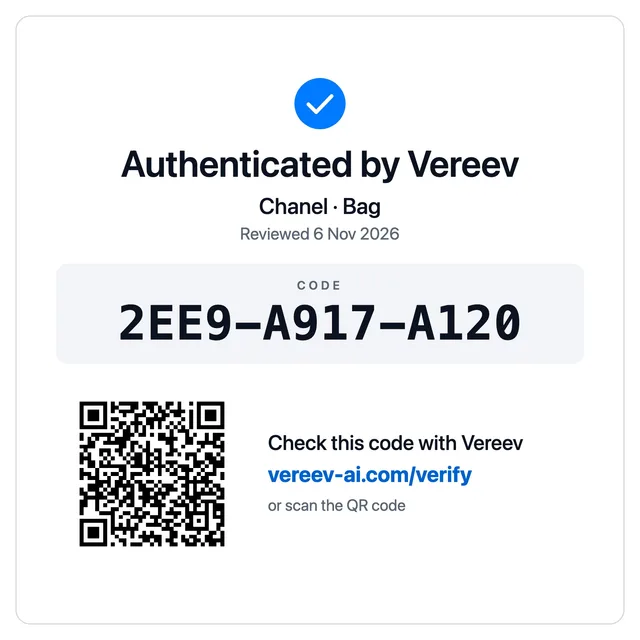
You:In the Vereev app, open the item’s result and save its certificate. It shows the E-Result code and a QR code that opens the record.
- 2
You:Or, in Store Kit, open the item’s proof card. Choose “For social and chat”, then press “Print”.
- 3
You:Keep the printed certificate or card with the item: next to it on display, or handed over with it.
- 4
Your buyer:Your buyer scans the QR code with a phone camera, or types the code on vereev-ai.com/verify.
What your buyer does
- Scans the QR code with a phone camera. The official record opens.
- Or types the code on vereev-ai.com/verify.
- Compares the photos on the record with the item in front of them.
Good to know
- Certificates come from the Vereev app. The website makes proof cards, in Store Kit.
- The printed proof card is 9 cm wide, on its own page.
- One certificate or card covers one item. Keep it with that item.
- A copied card can be put next to another item. That is why the record shows photos of the item Vereev reviewed.
Situation 7 of 8 · Authenticate before you decide
I check items before I buy or accept them
This is for you if…
You take in items from other people: on consignment, as a pawn, or as stock you buy from a supplier.
You need
- Tokens.
- The item in front of you, so you can take the photos.
Steps
- 1
You:Before you agree to anything, start an order for the item.
- 2
You:Take the photos the photo guide asks for. Add your own stock number, so you can find the result later.
- 3
Vereev:Vereev reviews the photos. If an angle is missing, Vereev asks for that exact photo.
- 4
Vereev:Vereev gives the result: Authentic, Replica or Indefinable.
- 5
You:Decide after the result. It is one input to your decision.
- 6
You:When you sell the item later, follow the steps for where you sell.
Authentic
You decide. If you sell it later, show the proof where you sell.
Replica
You decide. Its record is dated evidence you can show.
Indefinable
The tokens go back to your wallet. There is no record.
What your buyer does
- When you sell the item later, your buyer checks its record in the usual way.
- That is the badge, the QR code, the short code or the record link, depending on where you sell.
Good to know
- A Vereev result is an opinion on the photos of one item. It does not cover ownership, condition or value.
- Vereev works from photos, so the item stays with you.
- How long a review takes depends on the item and the photos. A request for more photos adds time.
- A Replica result has a dated public record. You can show it to the person who offered the item.
Situation 8 of 8 · Tokens by invoice, your list, sales
I handle many items or a team
This is for you if…
You authenticate many items every month, or several people in your business prepare items.
You need
- One Vereev account for the business.
- Store Kit.
Steps
- 1
You:In Store Kit, press “Request tokens by invoice”. Type how many tokens, then press “Write the email”.
- 2
Vereev:Vereev sends the invoice. After you pay it, Vereev adds the tokens to your account.
- 3
You:When you order, add your own stock number or SKU to each item. Only you see it.
- 4
You:In Store Kit, find any Authentic item by brand, E-Result code or stock number.
- 5
You:Press “Download my list (CSV)” for a spreadsheet of every Authentic item.
- 6
You:Talk to sales about volume pricing, setting up your team, or help placing the badge.
What your buyer does
Your buyers check each item’s record in the usual way, whichever workflow you use for that item.
Good to know
- Today each Vereev account has one sign-in. All its orders appear in one history and one Store Kit.
- If you need separate sign-ins for staff, tell sales.
- The list has each item’s E-Result code, brand, review date, stock number, record link and badge.
- The API (Early access): its reference is public, and keys will be issued to approved businesses when access opens.
What your buyer sees
Every way in opens the same official record on vereev-ai.com. Your buyer needs no account and no app.
Official Vereev record
ExampleExample brand Bag
✓ Authentic
- Brand
- Example brand
- Product category
- Bag
- Authentication date
- 10 Nov 2026
- Record issuer
- Vereev
E-Result code
00000000-0000-4000-8000-000000000000
Short code 0000-0000-0000
On the record
- The result: Authentic or Replica.
- The brand and the type of item.
- The review date.
- The E-Result code and the short code.
- Watermarked previews of the photos Vereev reviewed.
The record may also show which website your buyer came from, with a reminder that one record covers one item.
Four ways in
Badge
On your website.
Your buyer selects it.
QR code
On the proof card for social and chat, and on the app’s certificate.
Your buyer scans it with a phone camera.
Short code
On every proof card, and on the record itself.
Your buyer types it on vereev-ai.com/verify.
Record link
In chats and posts.
Your buyer opens it.
What the badge can show
The badge follows the record. The page it sits on cannot change what it says.

While the record says Authentic
Your chosen wording, the brand and the review date.

Replica, no record or a mistyped code
“No Vereev authentication”. It makes no claim.

If Vereev cannot be reached
A neutral message that asks the buyer to open the record. It never shows an old result.
Examples drawn for a made-up record. Your badge shows your own design and wording.
Words used on this page
- Token
- What pays for an order. The number of tokens per item depends on the brand.
- Order
- One item sent to Vereev, with its own photos and its own result.
- Photo guide
- The list of photos Vereev needs for a brand and type of item. The app and the order page show it as you go.
- Result
- Vereev’s answer for one order: Authentic, Replica or Indefinable.
- Record
- The public page on vereev-ai.com for one item with an Authentic or Replica result. It shows the result, the date and the photos Vereev reviewed.
- E-Result code
- The code of a record. It has 36 characters, like 2EE9A917-A120-4C1E-827C-2235C46453DF. Every item has its own.
- Short code
- The first 12 characters of the E-Result code, in three groups, like 2EE9-A917-A120. Typing it on vereev-ai.com/verify opens the record.
- Record link
- The address of a record: www.vereev-ai.com/verify/ followed by the E-Result code.
- Store Kit
- Your own page on vereev-ai.com. Sign in to see every Authentic item, with its proof card, badge and record link.
- Proof card
- A square picture for one Authentic item, made in Store Kit. One version is for marketplaces, one is for social and chat.
- Badge
- A small picture for your website. It says what the record says and opens the record when selected.
- Badge Studio
- Where you choose the badge’s design and wording, on vereev-ai.com/business/badge.
- Certificate
- The certificate the Vereev app makes for a result. It shows the E-Result code and a QR code that opens the record.
- Stock number or SKU
- Your own code for an item. You can add it when you order. Only you see it.
Questions
Do I have to change my website?
No. On marketplaces, social media and in chats, you post a picture or a link like any other. On your own website, you paste one small piece of HTML next to an item, the way you add any text or picture. For many items on Shopify or WooCommerce, there is a one-time setup in your shop’s admin. Your website is never connected to Vereev.
Does Vereev connect to my shop or see my sales?
No. Vereev is never connected to your shop and cannot see your orders, sales or customer list. The badge reads nothing from your page and sets no cookies. “Connect my shop” in Store Kit reads your product list in your own browser and sends nothing about it to Vereev.
Do my buyers need an account or the app?
No. The record opens in a web browser, with no account and no app.
What if the result is not Authentic?
A Replica result has a public record too, but no proof card, and its badge shows “No Vereev authentication”. You choose whether to share it. An Indefinable result has no record and no badge, and the tokens for that order go back to your wallet.
Can I use one record for two items?
No. One record covers one item, even when two items look the same. Each item needs its own order and its own result. Show a badge, card or certificate only with the item it describes.
Ready for your first item?
Prefer email? Write to admin@vereev-ai.com. Vereev is an independent service and is not affiliated with or endorsed by the brands it authenticates.
Situation 2 of 8 · Proof card with a QR code
I sell on social media
This is for you if…
You show items in social media posts or stories, and buyers message you to buy.
You need
Steps
You:In Store Kit, find the item and press “Proof card”.
You:Choose “For social and chat”. This version has a QR code and the words vereev-ai.com/verify.
You:Press “Download picture”.
You:Post the card with the item’s photos, for example as the last picture of the post.
Your buyer:Your buyer scans the QR code, or types the short code on vereev-ai.com/verify. The official record opens.
Juniper Lane Vintage Pre-owned designer bag. Swipe for the proof card: scan the QR code or check the code on vereev-ai.com/verify.
What your buyer does
Good to know